A virtual meeting room down the hall.
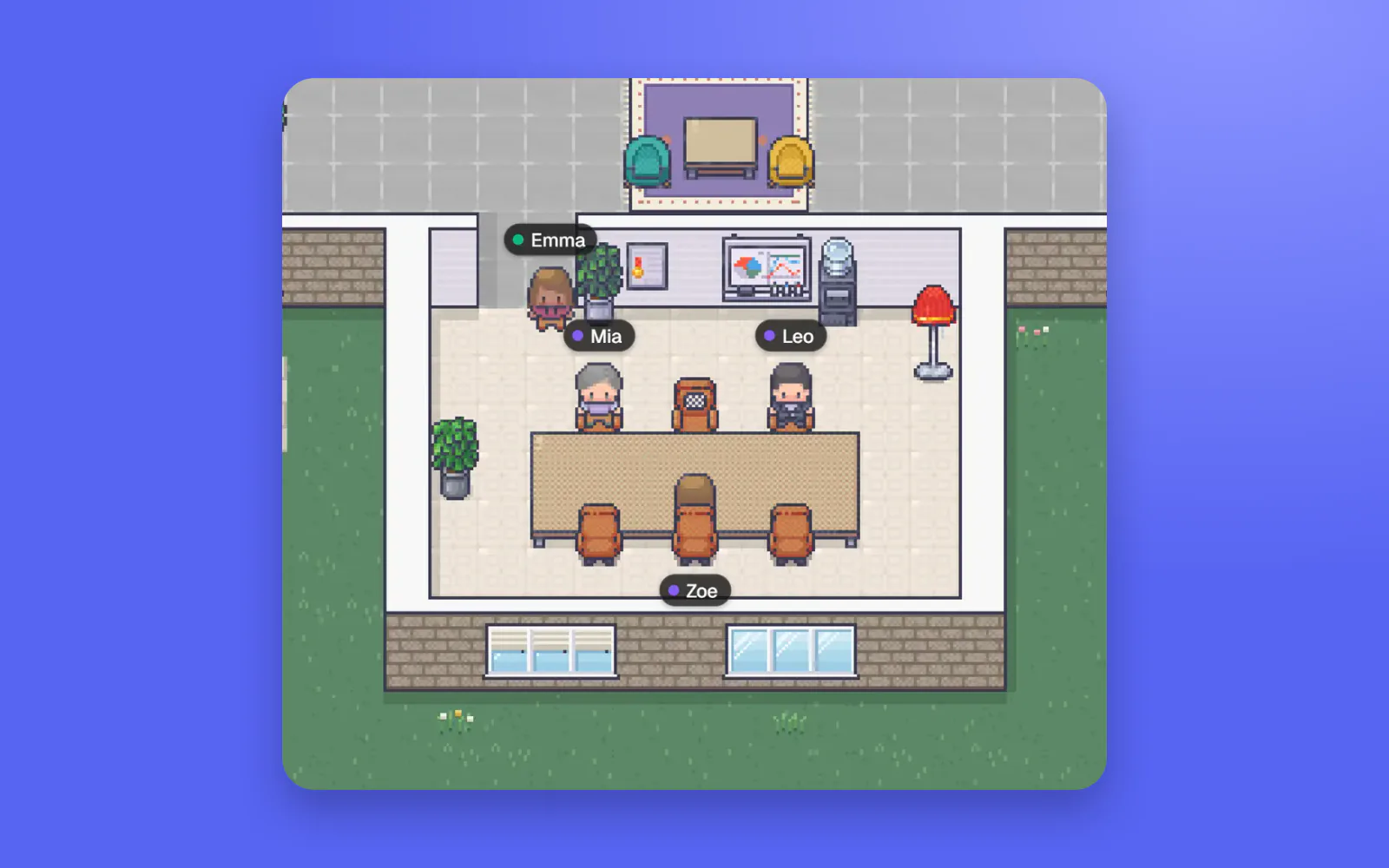
Every office has a meeting room that's always there. Join a meeting and your character walks in; walk out and you've left. No links, no waiting room.
One price for the whole team · No card needed
By Jitto Joseph
How a meeting works on TinyFloor
Most video tools start from a link. TinyFloor starts from a room: every office has a main meeting that's always open, and anyone can start another one beside it.
- 1.
Join
1
Press Join on the office's meeting. A quick check shows your camera and microphone, then your character walks into the meeting room.
- 2.
Talk
2
Voice first; turn your camera on if you want. Whoever is talking takes the big card, with three more beside it.
- 3.
Share
3
Share a window, a tab or your screen. It goes on the stage next to the people.
- 4.
Walk out
4
Leave and you're back on the floor. Walked out by mistake? Rejoin is one press.
The main meeting, and the ones you start
| The office's meeting | A meeting you start | |
|---|---|---|
| When it's there | Always, named after the office | From when you start it until the last person leaves |
| Who's in it | Anyone in the office who joins | The people you ask in, and anyone who joins |
| Good for | Standups, all-hands, a quick sync | A design review, a client prep, an incident |
| How people find it | On the floor and in the list of meetings | Asked in by name, and listed as "also on now" |
Asking people in, without a calendar
- Start and ask. Give the meeting a name, pick who to ask and press Start. They get "asks you to join" with the meeting's name, and can join or say not now.
- From a call. On a call with one person and want a third? Walk up to them and TinyFloor offers to make it a meeting for the three of you.
- See who's free first. The list of people shows who's free to talk, who's busy and who's already in another meeting, so you only ask people who can come.
A stage that follows the conversation
- The speaker on the big card. The big card moves to whoever is talking, but only after the last speaker has paused for a moment, so it doesn't flicker on every "mm-hm".
- Pin what matters. Pin a person or a shared screen to keep it big while others talk.
- No camera, still present. People without a camera show as a card that lights up when they speak, so the room never looks empty.
- Easy on the eyes. A camera left on through ten minutes with nobody talking turns itself off. Nobody is kept on camera when there's nothing to say.
What it doesn't do
There's no recording, no transcription and no AI notes. Meetings happen inside your office: there are no dial-in numbers and no webinar mode for a big audience. Shared screens carry the picture, not sound. If you need any of those, keep Zoom or Google Meet for that meeting and use TinyFloor for the everyday ones.
Common questions.
How many people can join a meeting?
Everyone in the office: up to 3 people on Free, and the whole team on Pro.
Do meetings have a time limit?
No. Meetings come with every plan, with no meter to watch.
What happens when the hours run out?
Meetings carry on with voice only until the 1st of the month. Calls between two people are never counted.
Can we have more than one meeting at once?
Yes. Besides the main meeting, anyone can start another with a name and ask people in.
Still wondering? Try the demo office and see for yourself.
From the blog


Related guides.
- Games for virtual meetings15 quick games for virtual meetings that need no preparation: talking games, guessing games and drawing games that fit in five minutes.

- One-on-one meeting questions40 one-on-one meeting questions sorted by topic: check-ins, workload, blockers, feedback, growth, the team and remote work, plus questions to ask your manager and a simple 1:1 agenda.

- Retrospective ideas15 retrospective ideas for remote teams: quick formats, visual formats, deeper formats and ones that lift the mood, with how to run a retro online and keep the actions moving.

- Team meeting agendaA weekly team meeting agenda template you can copy, what belongs in it and what doesn't, ideas to keep it fresh, and how to run it with a remote team in 30 minutes.

Keep exploring.
Give your teama floor to share.
14 days of Pro for every new office · Runs on Cloudflare